Reverse image search is one of those things that sounds harder than it is. In reality, you upload a photo, let the tool scan it, and see what comes back. Sometimes it finds the original source. Sometimes it shows older copies, similar versions, or other pages using the same image. It is especially useful when you have the picture, but not the words.
Desktop is straightforward. Drop the file into Google Images, paste the image URL, or upload it manually. On mobile, Google Lens is usually the fastest play. And honestly, Google does not catch everything. TinEye can be better for duplicate tracking, and Yandex can sometimes pull stronger results for faces or visually busy images.
We tested Google Images, Google Lens, TinEye, and Yandex using screenshots, product photos, and profile pictures. Google Lens was the fastest for everyday mobile use, Google Images did the best job finding source pages, TinEye was strongest for duplicate matches, and Yandex sometimes returned better face or scene results.
What is Reverse Image Search?
Reverse image search is a tool that lets you upload a photo or paste its link into a search engine to find similar images, the original source, or higher-quality versions. Instead of using words, you use the picture itself to discover where it appears online.
This makes it helpful for many everyday uses, like finding where to buy a product you’ve seen in a photo, checking if a viral image is real, or spotting if someone is using your work without permission.
It can also show different sizes of the same picture, which is handy for photographers, artists, or anyone needing a clearer, higher-resolution version.

How to Reverse Image Search on Desktop
You can do a reverse image search on a desktop by going to Google Images, clicking the camera icon, then uploading an image, pasting an image URL, or dragging a file into the search box. If you use Chrome, you can also right-click an image and search it with Google Lens.
Using the Camera Icon: Upload an Image or Use a URL
Google Images offers an easy way to upload images or use URLs for reverse searches.
Steps:
- Open Google Images and click on the camera button in the search bar.
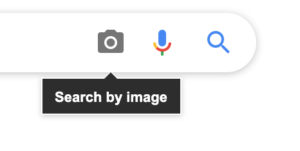
- You will see two options:
- Paste Image URL: If you found the picture online, copy the URL and put it here.
- Upload an Image: If you already have the picture saved on your computer, click Upload an Image and choose the file from your computer.
- Paste the address of the copied image or share the picture, then click Open or Choose.
- Google will analyze the image and show you matching images in the search results.
Alternative Method for Chrome Users
If you use Chrome, you can do a reverse image search right in the browser, without having to download or share anything.
Steps:
- Launch Chrome and go to the page that has the picture you want to find.
- Right-click on the image.
- From the drop-down box, choose “Search with Google Lens”.
- A new tab will open with Google’s reverse image search results for the selected image.
Dragging and Dropping a Picture for Reverse Search
You can easily do reverse image searches right in Google Images with the drag-and-drop way if you already have the image saved on your computer.
Steps:
- Go to Google Images.
- Open the folder on your computer where the image is saved.
- Hold down the picture file and drag it to the search bar in Google Images.
- If you put the picture into the search bar, Google will start looking for it right away.
How To Use Reverse Image Search on Browsers Other Than Google
You can easily use reverse image search on browsers like Mozilla Firefox or Apple Safari, and the process is nearly identical to Google Chrome.
- Open your preferred browser and go to Google Images.
- Upload the image you want to search by either:
- Clicking Upload an Image and selecting the file from your computer, or
- Dragging and dropping the image directly into the search bar.
- Wait for Google to process the image and display possible matches.
- The results will show related images or websites that feature similar content, and you can explore further from there.
How to Reverse Image Search on Mobile
On most phones, the easiest option is Google Lens. You can upload a photo, take a picture, or crop part of an image to search for similar results, product listings, or likely source pages.
Android: Reverse Image Search Using Google Lens
If you’re on Android, Google Lens makes reverse searching easy:
- Open the Google app and tap Discover.
- Choose Google Lens from the search bar.
- Either snap a new picture or upload one from your phone.
- To look for a certain part of the picture, tap Use an object in the picture or Use part of the picture. Then, scroll through the results.
iPhone: Reverse Image Search Using Safari
For IOS users, reverse image search can be done through Safari:
- Open the Safari app and go to Google Images.
- Search for the image you’re interested in by entering keywords.
- Tap the image you want to reverse search.
- Tap the Google Lens icon in the top-right corner of the screen.
- You can use the crop tool to find the exact part of the picture you want to look for, then scroll through the results.
Alternatives to Google Images
Google works well for most searches, but there are a few alternatives that can perform better in specific cases.
Yandex
Yandex, Russia’s leading search engine, offers one of the strongest reverse image tools, especially for face and scene recognition. Its interface is mostly in Russian, but you can navigate easily with buttons like Выберите файл (Choose file) and Найти (Search). Once uploaded, Yandex shows similar images and lets you refine results. It’s powerful for faces from different angles or lighting, though some users have privacy concerns due to its Russian ties.
TinEye
TinEye was one of the first reverse image search engines and remains a reliable option. You can upload an image or paste a URL, and it will scan its massive database of over 44 billion pictures. TinEye stands out for not storing your uploads, protecting your privacy. With browser add-ons for Chrome, Firefox, and Opera, and its TinEye Alerts service (used by companies like Philips and The Home Depot), it’s a trusted choice for tracking how images appear online.
DupliChecker
DupliChecker offers a simple reverse image search that works on both desktop and mobile. You can upload a file or paste a link to quickly find matching photos. Its easy-to-use interface makes it handy for everyday searches, from spotting duplicates to resizing or cropping images.
Best Reverse Image Search Tools Compared
Not every reverse image search tool works the same way. Some are better at finding the original source, while others are stronger for faces, duplicates, or quick mobile searches.
- Best for finding the original source: Google Images or Google Lens
- Best for face matching: Yandex
- Best for tracking duplicates: TinEye
- Best for quick phone use: Google Lens
If you’re not sure which tool to use, here’s a quick side-by-side comparison based on how each one performs in real situations.
| Tool | Best for | Mobile friendly | URL search | Face or scene matching | Privacy note |
|---|---|---|---|---|---|
| Google Images | Finding source pages and similar images | Yes | Yes | Moderate | Tied to Google services |
| Google Lens | Fast phone searches, products, objects, screenshots | Yes | Limited | Good for objects and scenes | Tied to Google services |
| TinEye | Finding duplicates and older indexed versions | Yes | Yes | Limited | Known for not storing uploads |
| Yandex | Strong visual and face matching | Yes | Yes | Strong | Some users may prefer other tools for privacy reasons |
| DupliChecker | Quick casual searches across devices | Yes | Yes | Basic | Better for simple use cases |
Browser Extensions for Reverse Image Search
If the methods above aren’t working for you here are a couple extensions for Reverse image Search.
Reverse Image Search Chrome Extension
Reverse Image Search is a Google Chrome extension that allows you to screenshot a web page and select a portion of it for reverse image search. This is useful if you have multiple images combined and you want to do a reverse image search of only part of the combined image. Additionally, you can reverse image search a video by pausing the video, taking a screenshot, and then reverse image searching the screenshot.

Reverse Image Search Extension on Firefox
Firefox also offers a reverse image extension. It boasts that, “Adds an option to the context menu to search with an image on Google, Bing, Yandex, TinEye, SauceNAO, IQDB or custom search engines. You can also choose more than one and they will be shown in a submenu!”. The multi results feature may be a good option for the serious image searcher.

Can AI Tools Help With Reverse Image Search?
Yes, sometimes. But it is not a replacement for real reverse image search tools.
AI is helpful when you are trying to make sense of an image before you search it. Maybe you are looking at a blurry screenshot, a product photo with no labels, or a place you recognize but cannot name. In those cases, AI can help you figure out what is in the image and what search terms are worth trying.
That said, AI is better at giving you clues than giving you proof. It might describe the image well, point out what stands out, or help you narrow the search. But when you want the original source, duplicate matches, or actual pages where the image appears, tools like Google Images, Google Lens, TinEye, and Yandex are still more reliable.
Using ChatGPT or Gemini With an Image
This works best when you are stuck. You upload the image, ask a few smart questions, and use the answers to guide your next move. That is where AI can save time.
Try prompts like:
- What is shown in this image?
- Does this image look edited or cropped?
- What part of this image should I focus on?
- What keywords would help me find the source?
- Can you identify the product, place, or object in this picture?
Use AI image search to get directions. Use reverse image search tools to verify what is actually true.
Is Reverse Image Search Accurate?
It is important to note that Reverse Image Search is not a perfect technology. Multiple factors can influence the accuracy of your search results when looking up an image.
Image File Quality
The quality of the image plays a big role in how well a reverse search can identify it. Think of it like trying to guess the taste of food while blindfolded. If the image is blurry or pixelated, it’s hard for the system to make an accurate match, just as it would be for us to recognize something without using our eyes.
Image Recognition Accuracy
Reverse image search tools rely on large databases to match objects. Sometimes they struggle with uncommon images, but the more frequently an image or object appears online, the better the chances of finding it. Well-known locations or popular images are usually easier for the search engine to recognize.
When Reverse Image Search May Not Work Well
Reverse image search works best when the image is clear and already appears somewhere online. Results can be weaker when:
- The image is blurry or very small
- The photo has been heavily cropped
- Filters, text, or edits cover the original image
- The image is brand new and has not been indexed yet
- The image only exists inside a private app or account
- You are trying to identify a very generic object with no unique visual details
If your first search does not help, try cropping the image differently, using a clearer version, or checking the same image in more than one tool.
Tips to Make Your Reverse Image Search Accurate
To ensure your reverse image searches are as accurate as possible, make sure to keep these brief tips in mind when you are submitting an image for reverse search:
- Check Image Dimensions: Try to upload images that are at least 200×200 pixels in size.
- Reduce Compression: If using an image editor, avoid high compression, as it can degrade the quality.
- Visual Check: Always preview the image on your device before uploading to make sure it’s clear enough.
Why You Should Reverse Image Search
Reverse image search is quick, free, and packed with practical uses. From spotting fake photos to finding where your own images are shared, it can save you time and give you peace of mind.
- Track your images online: See if your photos or artwork are being used without permission or gaining traction on other sites.
- Verify authenticity: Spot manipulated or fake pictures by checking the original source before sharing.
- Shop smarter: Find products you’ve seen in a photo, compare prices, or locate the store where they’re sold.
- Protect yourself from scams: Run a reverse search on profile pictures to confirm if someone online is real or using a stolen photo.
- Find better quality versions: Locate higher-resolution copies of an image for printing, design, or personal use
Conclusion
Reverse image search is a simple but powerful tool that works across desktop, mobile, and even AI chatbots. With just a photo or link, you can uncover the original source of an image, find similar pictures, or verify whether something online is authentic.
Whether you want to shop smarter, protect your content, or avoid scams, it takes only a few clicks to get answers.
Using tools like Google Images, Google Lens, TinEye, or Yandex, you can make the internet a little clearer and more trustworthy every time you search.
FAQs
What is reverse image search?
Reverse image search lets you search with the image itself instead of typing in keywords. You upload a photo, screenshot, or image link, and the tool looks for similar images, possible source pages, or other places that image appears online. It is useful for checking where a picture came from, finding better quality versions, or seeing whether the same image has been reused elsewhere.
Can I reverse image search from a screenshot?
Yes, and it often works better than people expect. Screenshots can be useful for checking a product photo, social profile image, or a cropped visual from a video or post. Results are usually better when you trim off extra clutter first, like menus, captions, or blank space around the main subject.
What is the best reverse image search tool?
There is not one single best tool for every situation. Google Lens is usually the easiest for quick phone searches, Google Images is strong for finding source pages, TinEye is helpful for duplicate tracking, and Yandex can sometimes return better matches for faces or detailed scenes. The best choice depends on what you are trying to verify and how clear the image is.
Is reverse image search always accurate?
Not always. Results can vary a lot based on image quality, cropping, filters, edits, and whether the image has already been indexed by search engines. In practice, the most reliable approach is to try more than one tool and compare the results instead of relying on a single search.